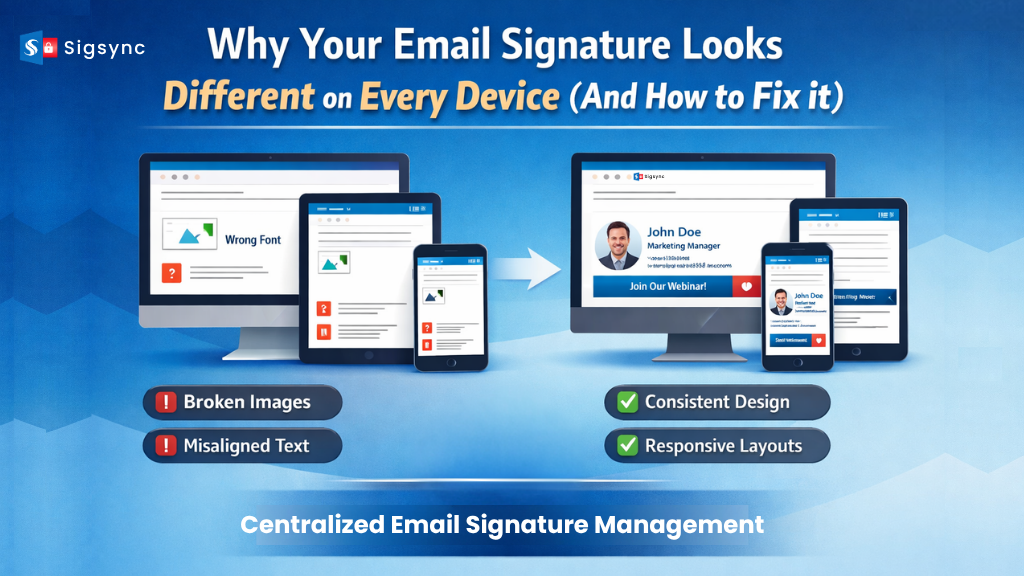
Email signatures are expected to present a consistent and professional brand image. In reality, they often look perfect on one device but appear misaligned or broken on another. Fonts may change, images might not load, spacing can shift, and banners can lose their structure.
This is not just a formatting issue. It directly impacts brand perception, reduces the effectiveness of marketing elements, and can affect user trust.
In many organizations, the problem comes down to how email signatures are created and managed. When individuals control their own signatures or rely on device-specific settings, inconsistency becomes unavoidable.
A centralized solution like Sigsync resolves this by managing signatures at the server level within Microsoft 365. This ensures every email maintains a consistent and professional look, no matter which device or email client is used.
Understanding the causes makes it easier to fix the issue.
Why Email Signatures Look Different on Every Device
1. Differences in Email Client Rendering
Each email client processes HTML and CSS differently.
- Microsoft Outlook uses the Microsoft Word rendering engine
- Gmail restricts certain HTML and CSS elements
- Mobile apps simplify layouts for smaller screens
Because of this, the same signature can appear differently across platforms.
2. Lack of Responsive Design
Many signatures are built for desktop use and do not adapt well to smaller screens.
- Desktop layouts appear structured
- Mobile layouts may shrink text or misalign images
Without responsive design, consistency across devices is difficult to achieve.
3. Decentralized Signature Creation
When employees create or edit their own signatures, inconsistencies are inevitable.
- Different fonts and styles
- Varying image sizes and placements
- Misaligned layouts
This leads to a fragmented brand identity across the organization.
4. Image Hosting and Accessibility Issues
Images, logos, and banners may not display correctly due to:
- Locally hosted images
- Broken or inaccessible links
- Email client restrictions
This often results in missing visual elements.
5. Unsupported Fonts and Styling
Not all email clients support custom fonts or advanced styling.
- Unsupported fonts revert to defaults
- Styling may not render as intended
This creates a gap between design and actual appearance.
6. Device and Screen Size Differences
Signatures that look fine on large screens may not scale well.
- Content can wrap unpredictably
- Layouts may break on mobile devices
With multiple devices in use, maintaining consistency becomes more complex.
Why This Matters More Than It Seems
Inconsistent email signatures can have a wider impact than expected:
- Brand Identity: Weakens recognition and consistency
- Marketing Performance: Banners and calls to action may not display properly
- Professional Credibility: Poor formatting can reduce trust
- Compliance Risks: Missing disclaimers may create legal concerns
Every email reflects your organization. Inconsistency at this level affects how your brand is perceived.
How to Fix Email Signature Inconsistency
1. Use Centralized Signature Management
Moving away from user-managed signatures is key.
With Sigsync, you can:
- Control all signatures from one place
- Maintain consistent branding across users
- Apply updates automatically
This removes variability and ensures standardization.
Visit: Centralized Office 365 email signature
2. Design for All Devices
Signatures should adapt to different screen sizes.
- Keep layouts clean and structured
- Avoid overly complex designs
- Ensure readability on mobile
Sigsync provides templates built for cross-device compatibility.
3. Use Web-Safe Fonts
Choose fonts that work across all email clients:
- Arial
- Calibri
- Verdana
These ensure consistent display everywhere.
4. Ensure Host Images Properly
Ensure images are accessible and optimized.
- Use secure and stable URLs
- Optimize file size for faster loading
- Ensure compatibility across clients
Sigsync handles image hosting for reliable display.
5. Test Across Platforms and Devices
Before rollout, test signatures thoroughly.
- Check Outlook, Gmail, and mobile apps
- Validate across screen sizes
- Confirm alignment and formatting
Sigsync helps ensure consistent performance across platforms.
6. Avoid Manual Updates
Manual updates increase the risk of errors.
With Sigsync:
- Changes apply instantly across the organization
- Marketing banners update centrally
- No user action is required
This improves both accuracy and efficiency.
How Sigsync Provides a Complete Solution
Instead of fixing issues one by one, Sigsync provides a complete solution:
- Centralized Management: Control everything from one dashboard
- Consistent Branding: Uniform appearance across all devices
- Cloud-Based Setup: No installation on user systems
- Campaign Integration: Easily manage marketing banners
- Automatic Updates: Apply changes instantly
- Compliance Support: Standardize disclaimers and policies
Conclusion
When email signatures appear differently across devices, it points to a deeper management issue. Fixing it requires more than design changes. It requires a structured and centralized approach.
With a solution like Sigsync, you can ensure every email signature is consistent, professional, and optimized for all environments.
In business communication, consistency is essential.